
WO Mic: Not Working? Complete Troubleshooting Guide
If WO Mic isn’t working properly, don’t worry—most connection and audio problems can be fixed in just a few minutes. Whether you’re using USB, Wi-Fi, Bluetooth, or Wi-Fi Direct, issues are usually caused by incorrect settings, missing drivers, firewall restrictions, or microphone permissions.
This troubleshooting guide covers the most common WO Mic problems and provides step-by-step solutions for Windows 10, Windows 11, Android, and iPhone. Follow the fixes below to restore your phone as a working microphone for gaming, streaming, online meetings, or voice recording.
Quick Answer
Most WO Mic issues are caused by one of these five problems:
- The WO Mic Driver isn’t installed or is corrupted.
- Your phone and computer are using different connection methods.
- Windows Firewall or antivirus is blocking the connection.
- WO Mic Device isn’t selected as the default microphone.
- USB Debugging is disabled on Android.
Checking these items resolves most WO Mic connection and audio problems within a few minutes.
Quick Fixes for Common WO Mic Problems
| Problem | Quick Fix |
|---|---|
| Phone not detected | Restart both your phone and PC. |
| Driver installation failed | Reinstall the latest WO Mic Driver as Administrator. |
| WO Mic device missing | Reinstall the driver and restart Windows. |
| USB not connecting | Enable USB Debugging and reconnect the cable. |
| Wi-Fi connection failed | Connect both devices to the same Wi-Fi network and allow WO Mic through the firewall. |
| Bluetooth connection failed | Remove the pairing and connect the devices again. |
| Audio delay | Switch to a USB connection for the lowest latency. |
| Static or distorted audio | Lower the microphone gain or use USB instead of wireless. |
Before You Start
Before trying advanced troubleshooting, complete these basic checks. They solve many common WO Mic issues.
- Install the latest WO Mic mobile app, Client, and Driver.
- Restart both your phone and computer.
- Make sure your phone has permission to access the microphone.
- If using Wi-Fi, connect both devices to the same network.
- Disconnect and reconnect the selected connection method.
- Temporarily disable any VPN before testing.
If WO Mic still doesn’t work, continue with the solutions below.
1
WO Mic Won't Connect
If WO Mic keeps showing Connecting, Connection Failed, or Timeout, the problem is usually related to the connection method or network settings.
Possible Causes
- Different connection methods selected
- Incorrect IP address
- Phone and PC on different networks
- Firewall or antivirus blocking the connection
- VPN enabled
- Outdated WO Mic software
How to Fix It
1. Verify the Connection Method
The phone and computer must use the same transport.
For example:
- USB ↔ USB
- Wi-Fi ↔ Wi-Fi
- Bluetooth ↔ Bluetooth
- Wi-Fi Direct ↔ Wi-Fi Direct
Using different connection methods will prevent WO Mic from connecting.
2. Check the Wi-Fi IP Address
If you’re using Wi-Fi:
- Open the WO Mic app.
- Tap Start.
- Copy the displayed IP address.
- Enter the same address in the WO Mic Client.
Even a small typing mistake can cause the connection to fail.
3. Make Sure Both Devices Are on the Same Network
Your phone and computer must be connected to the same Wi-Fi router.
For example:
- PC → Home Wi-Fi

- Phone → Home Wi-Fi
Avoid combinations such as:
- PC → Home Wi-Fi
- Phone → Mobile Data

or
- PC → Guest Wi-Fi
- Phone → Main Wi-Fi
4. Allow WO Mic Through the Firewall
Windows Defender Firewall may block network communication.
Allow WO Mic Client on Private networks, then try reconnecting.
5. Disable VPN
VPN software can place your devices on different virtual networks.
Disconnect the VPN and test the connection again.
6. Update WO Mic
Install the latest version of:
- WO Mic App
- WO Mic Client
- WO Mic Driver
Using matching versions helps prevent compatibility issues.
7. Try Another Connection Method
If Wi-Fi isn’t working, switch to:
- USB
- Bluetooth
- Wi-Fi Direct
This helps determine whether the problem is related to your network or the software.
2
Driver & Device Problems
Most Windows-related WO Mic issues occur because the virtual microphone driver isn’t installed correctly or Windows can’t recognize it.
Common Symptoms
- Driver installation failed
- Driver Error Code 52
- WO Mic Device missing
- Virtual microphone not detected
- Yellow warning icon in Device Manager
How to Fix Driver Problems
Run the Driver Installer as Administrator
Right-click the WO Mic Driver installer and select Run as administrator.
Administrator privileges are required to install the virtual audio driver.
Reinstall the Driver
A clean installation resolves most driver issues.
- Uninstall the existing WO Mic Driver.
- Restart your computer.
- Download and install the latest driver.
- Restart Windows again.
Check Device Manager
Open Device Manager and look under:
- Audio inputs and outputs
- Sound, video and game controllers
If WO Mic is missing or shows a warning icon, reinstalling the driver usually fixes the problem.
Fix Driver Error Code 52
If Windows displays:
Windows cannot verify the digital signature for this device (Code 52).
Try these steps:
- Install the latest official WO Mic Driver.
- Restart Windows after installation.
- Make sure Secure Boot isn’t preventing older drivers from loading.
- Perform a clean driver reinstallation if the error continues.
Check Windows Sound Settings
Even if the driver installs successfully, Windows may not select it automatically.
Go to:
Settings → System → Sound → Input
If WO Mic Device doesn’t appear, reinstall the driver and restart your PC.
Restart Windows Audio
Sometimes the Windows Audio service fails to load newly installed devices.
Restart the service or simply reboot your computer to refresh available audio devices.
When to Reinstall the Driver
A clean driver installation is recommended if:
- The installation failed.
- Error Code 52 appears.
- WO Mic Device is missing.
- Windows no longer detects the virtual microphone after an update.
In most cases, reinstalling the latest driver resolves the issue without additional troubleshooting.
3
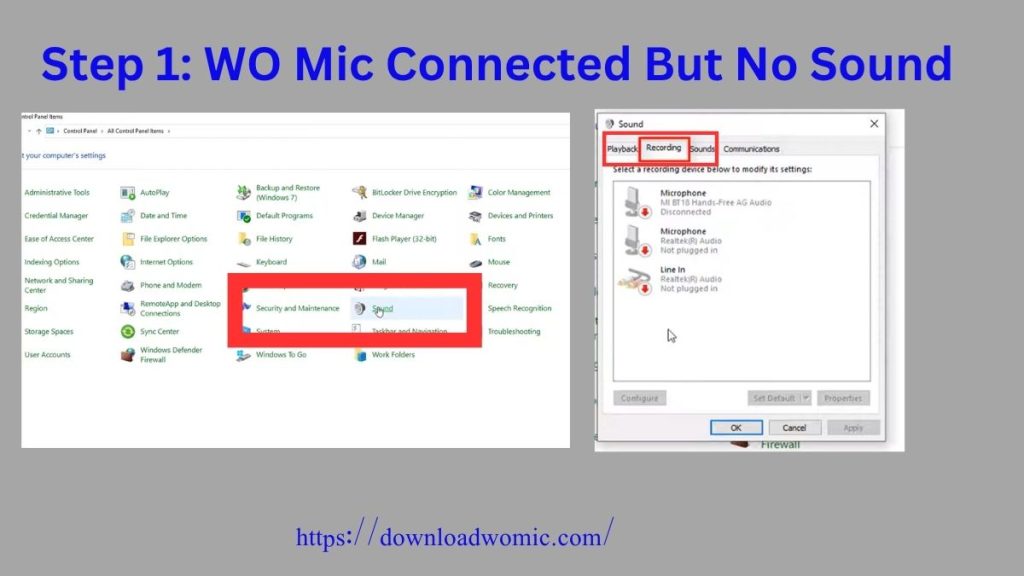
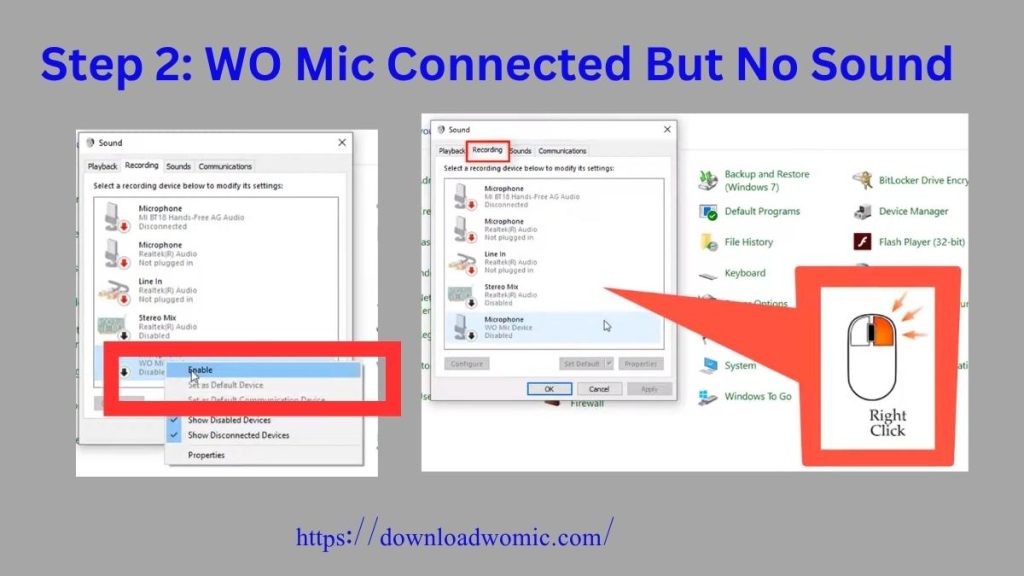
No Audio or Poor Audio Quality
If WO Mic connects successfully but your voice isn’t heard, the problem is usually caused by incorrect microphone settings, low input volume, or audio configuration.
Common Symptoms
- No sound from the microphone
- Very low microphone volume
- Static or distorted audio
- Echo or feedback
- Choppy audio
How to Fix It
Select WO Mic as the Default Microphone
Open:
Settings → System → Sound → Input
Select WO Mic Device as your default recording device.
Also choose WO Mic Device as the input microphone in applications like Discord, OBS Studio, Zoom, Microsoft Teams, or Google Meet.
Check the Input Volume
If your voice is too quiet:
- Open Sound Settings.
- Select WO Mic Device.
- Increase the Input Volume.
Avoid setting the level too high, as it can introduce background noise or distortion.
Check Windows Microphone Permissions
Open:
Settings → Privacy & Security → Microphone
Make sure:
- Microphone Access is enabled.
- Let Desktop Apps Access Your Microphone is turned on.
Match the Sample Rate
Different sample rates can cause crackling or distorted sound.
For the best compatibility, set both Windows and your recording software to 48 kHz.
Disable Exclusive Mode
Some applications take exclusive control of the microphone, preventing other programs from using it.
Open the microphone properties and disable Exclusive Mode if you use WO Mic with multiple applications.
Reduce Echo and Background Noise
If you hear echo or feedback:
- Use headphones instead of speakers.
- Lower your speaker volume.
- Disable microphone monitoring.
- Keep your phone away from your speakers.
Use USB for Better Audio
If you’re hearing static or audio dropouts over Wi-Fi or Bluetooth, switch to a USB connection for a more stable signal and lower latency.
4
USB, Wi-Fi, Bluetoot h & Wi-Fi Direct Problems
Each connection method has its own common issues. Use the fixes below based on how you’re connecting your phone to your computer.
USB Connection Not Working
USB offers the lowest latency and is the most reliable connection method.
Common Causes
- USB Debugging disabled
- Charging-only USB cable
- USB authorization not accepted
- Incorrect USB mode
- Missing USB drivers
Fixes
- Enable USB Debugging in Android Developer Options.
- Accept the USB authorization prompt when connecting your phone.
- Use a USB data cable, not a charging-only cable.
- Select File Transfer (MTP) or Data Transfer mode.
- Reconnect your phone or reinstall the USB driver if Windows doesn’t detect it.
Wi-Fi Connection Problems
Wi-Fi is convenient but depends on your local network configuration.
Common Causes
- Devices on different Wi-Fi networks
- Firewall blocking WO Mic
- VPN enabled
- Public network profile
- Weak Wi-Fi signal
Fixes
- Connect both devices to the same Wi-Fi network.
- Allow WO Mic Client through Windows Firewall.
- Disable any active VPN.
- Change your Windows network profile to Private.
- Restart your router if the connection continues to fail.
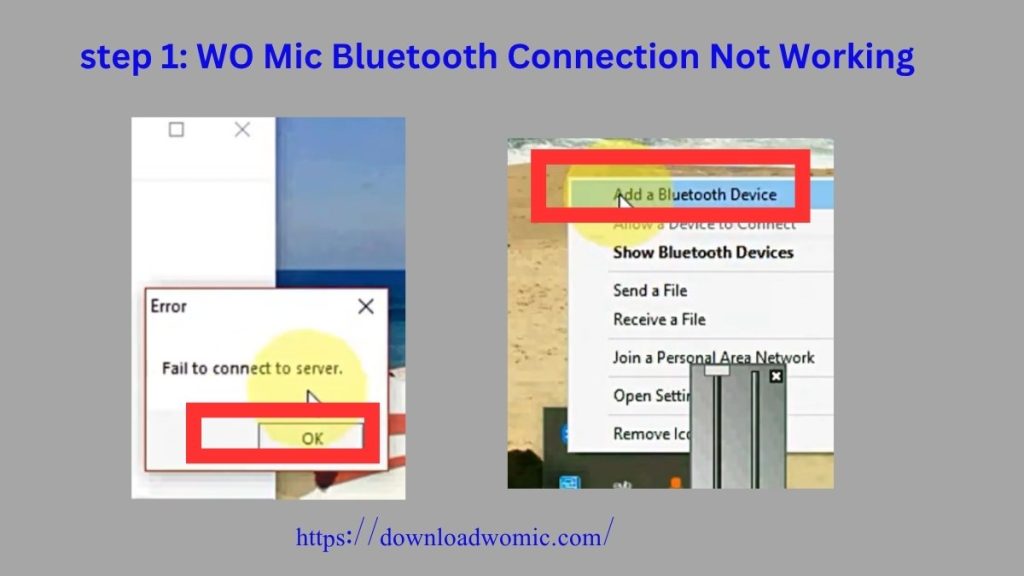
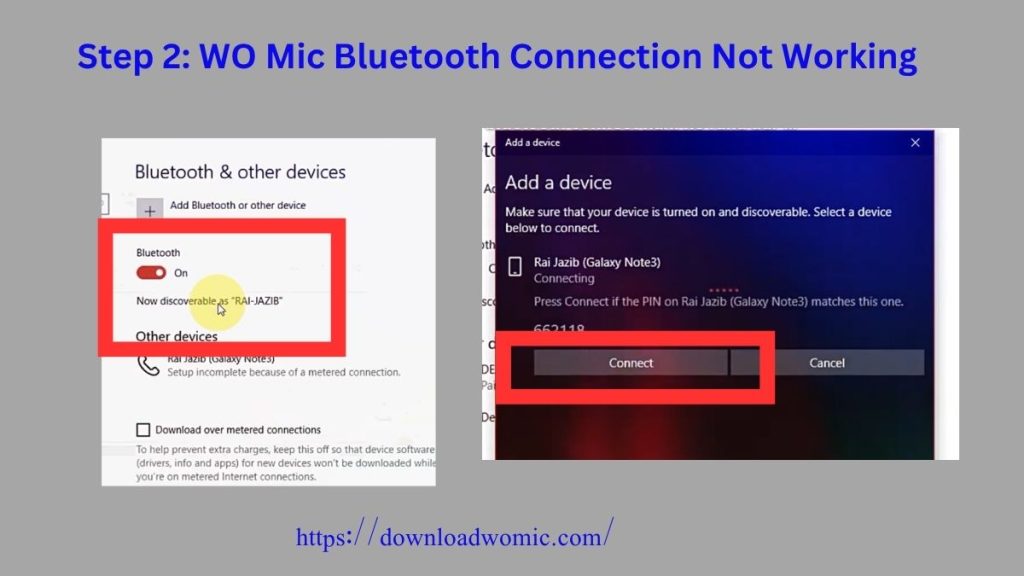
Bluetooth Connection Problems
Bluetooth works without Wi-Fi but usually has higher latency.
Common Causes
- Pairing failure
- Frequent disconnections
- Outdated Bluetooth drivers
Fixes
- Remove the existing Bluetooth pairing.
- Pair the devices again.
- Restart Bluetooth on both devices.
- Update your computer’s Bluetooth drivers.
Wi-Fi Direct Problems
Wi-Fi Direct connects your phone directly to your PC without a router.
Common Causes
- Unsupported wireless adapter
- Outdated Wi-Fi drivers
- Mobile Hotspot conflicts
Fixes
- Update your wireless adapter driver.
- Disable Windows Mobile Hotspot before connecting.
- If your adapter doesn’t support Wi-Fi Direct properly, switch to USB or standard Wi-Fi.
Reduce Audio Delay (Latency)
Some delay is normal, especially with wireless connections.
Best Connection Methods
| Connection | Latency |
|---|---|
| USB | ⭐ Lowest |
| Wi-Fi | ⭐⭐ Low |
| Wi-Fi Direct | ⭐⭐⭐ Medium |
| Bluetooth | ⭐⭐⭐⭐ Highest |
Tips to Reduce Latency
- Use USB whenever possible.
- Close unnecessary background applications.
- Stay close to your Wi-Fi router.
- Use a 5 GHz Wi-Fi network if available.
- Reduce the audio buffer size in supported applications.
5
Apps Don't Detect WO Mic
If Discord, OBS Studio, Zoom, Microsoft Teams, or Google Meet can’t detect WO Mic, Windows usually isn’t using the correct microphone.
Select WO Mic Manually
Open your application’s audio settings and choose:
WO Mic Device
Avoid leaving the input device set to Default, as Windows may select another microphone.
Restart the Application
Many applications only detect microphones during startup.
If you connected WO Mic after opening the program:
- Close the application.
- Connect WO Mic.
- Launch the application again.
Verify Windows Detection
Before troubleshooting the application itself, confirm Windows detects WO Mic.
Go to:
Settings → System → Sound → Input
If WO Mic Device doesn’t appear, reinstall the driver before troubleshooting Discord, OBS, or other applications.
Check OBS Studio
Some applications apply audio enhancements that may interfere with virtual microphones.
If your voice isn’t detected:
- Disable automatic input sensitivity.
- Turn off noise suppression temporarily.
- Test the microphone again.
Check OBS Studio
If you’re using OBS:
- Add a new Audio Input Capture source.
- Select WO Mic Device.
- Verify the sample rate matches Windows (48 kHz recommended).
- Test the microphone before starting your recording or stream.
Test the Microphone
Before joining a meeting or going live:
- Open Windows Sound Recorder or your application’s microphone test.
- Record a short sample.
- If your voice is recorded correctly, WO Mic is working, and the issue is likely with the application’s settings.
6
Permission & Update Issues
Sometimes WO Mic stops working after a system update or because the required permissions have been disabled. The fixes below resolve most permission-related problems.
Phone Microphone Permission Denied
WO Mic requires permission to access your phone’s microphone. Without it, the app may connect but won’t transmit any audio.
Android
- Open Settings → Apps → WO Mic → Permissions.
- Enable Microphone permission.
- Restart the WO Mic app.
iPhone
- Open Settings → WO Mic.
- Turn on Microphone access.
- Reopen the app and reconnect.

WO Mic Not Working After a Windows Update
Major Windows updates can reset drivers or audio settings.
Fixes
- Reinstall the latest WO Mic Driver.
- Restart your computer.
- Verify that the WO Mic Device is selected as the default microphone.
- Restart the Windows Audio service if the device doesn’t appear.
WO Mic Not Working After an Android Update
Android updates may disable developer settings or reset permissions.
Fixes
- Re-enable USB Debugging.
- Grant microphone permission again.
- Reconnect the USB cable and approve the authorization prompt.
- Restart both your phone and computer.
7
Linux Troubleshooting
WO Mic for Linux is distributed as an AppImage. If it doesn’t launch or connect, try the following fixes.
WO Mic Not Working After a Windows Update
- Run the following command in Terminal:
- chmod +x micclient-x86_64.AppImage
- Then launch the application again.
Check Your Audio Configuration
Modern Linux distributions use PipeWire or PulseAudio.
If the virtual microphone isn’t detected, verify that your audio server is running correctly and that the required audio modules are enabled.
Check Firewall Settings
If you’re using Wi-Fi mode, make sure your firewall isn’t blocking local network communication.
Try Another Connection Method
If Wi-Fi continues to fail, switch to USB or Bluetooth to determine whether the issue is network-related.
8
Advanced Diagnostics
If none of the solutions above work, collect diagnostic information before contacting support.
Enable Debug Logging
Enable WO Mic’s debug mode, reproduce the problem, and allow the application to generate log files.
Include These Details
When requesting support, provide:
- Windows, Android, or iPhone version
- WO Mic App version
- WO Mic Client version
- WO Mic Driver version
- Connection method (USB, Wi-Fi, Bluetooth, or Wi-Fi Direct)
- Exact error message
- Relevant log files (if available)
Providing complete information makes troubleshooting much faster.
Common WO Mic Error Messages
| Error Message | Possible Cause | Solution |
|---|---|---|
| Driver Installation Failed | Driver blocked or interrupted | Reinstall the latest driver as Administrator. |
| Connection Failed | Incorrect IP address, firewall, or network issue | Verify the connection method, IP address, and firewall settings. |
| Device Not Found | Driver missing or corrupted | Reinstall the WO Mic Driver and restart Windows. |
| Connection Timeout | Devices can't communicate | Ensure both devices are on the same network and disable VPN. |
| Access Denied | Missing permissions | Run the client as Administrator and check microphone permissions. |
Tips to Prevent Future Problems
Follow these best practices to keep WO Mic running smoothly:
- Keep the WO Mic App, Client, and Driver updated.
- Use USB for gaming, streaming, and voice recording.
- Connect both devices to the same Wi-Fi network when using wireless mode.
- Allow WO Mic through Windows Firewall after major updates.
- Disable battery optimization for the WO Mic app on Android.
- Use a quality USB data cable instead of a charging-only cable.
Related Guides
Need more help with WO Mic? These guides may also be useful:
WO Mic Download
WO Mic Tutorial
WO Mic Driver Download
WO Mic for Linux
WO Mic for Mac
WO Mic Alternatives
WO Mic Settings & Connection Methods