
WO Mic for iPhone (iOS): Use Your iPhone as a Wireless Microphone for PC
WO Mic for iPhone lets you use your iPhone as a wireless microphone for a Windows PC. Simply install the iOS app and Windows Client, connect over Wi-Fi or USB (where supported), and start using your iPhone in Discord, Zoom, OBS Studio, Teams, and other voice applications.
Quick Answer
Yes. WO Mic supports iPhone and lets you use it as a wireless microphone for a Windows PC. Install the WO Mic app on your iPhone and the WO Mic Client with Driver on your Windows PC. Then connect using Wi-Fi or USB (where supported) and select WO Mic Device as your microphone.
WO Mic for iPhone at a Glance
| Feature | Details |
|---|---|
| Platform | iPhone / iPad |
| Supported iOS | Latest supported version of iOS |
| PC Support | Windows 10 & Windows 11 |
| Connection Methods | Wi-Fi, USB (where supported) |
| Best For | Meetings, Streaming, Recording, Voice Chat |
| Price | Free |
Can You Use WO Mic on iPhone?
Once configured, Windows recognizes WO Mic as a standard microphone, allowing it to work with most voice chat, meeting, and recording applications.
Whether you’re joining meetings, gaming with teammates, recording your voice, or streaming, WO Mic provides an affordable alternative to a dedicated microphone.
Many users rely on WO Mic for:
- Discord voice chat
- Zoom meetings
- Microsoft Teams calls
- Google Meet conferences
- OBS Studio streaming
- Skype
- Voice recording
- Online gaming
- Podcasts and presentations
Why Choose WO Mic?
- Turn your iPhone into a PC microphone
- No additional microphone required
- Works with popular Windows applications
- Supports Wi-Fi and USB (where supported)
- Ideal for meetings, streaming, gaming, and recording
WO Mic for iPhone Requirements
Before setting up WO Mic, make sure both your iPhone and Windows PC meet the basic requirements below.
Whether you’re joining meetings, gaming with teammates, recording your voice, or streaming, WO Mic provides an affordable alternative to a dedicated microphone.
Many users rely on WO Mic for:
On Your PC
Your Windows computer should have:
- Windows 10 or Windows 11
- WO Mic Client installed
- WO Mic Virtual Device Driver installed
- Administrator permission to install drivers
- The same Wi-Fi network as your iPhone when using a wireless connection
On Your iPhone
You’ll need:
- The latest version of the WO Mic iOS app
- A compatible iPhone or iPad
- The Compatible with current iOS versions
- A stable Wi-Fi connection (for wireless setup)
- Sufficient battery charge to avoid interruptions during long sessions
Download WO Mic for iPhone
Download the WO Mic iPhone app and the Windows Client with Driver before starting the setup.
iPhone App
| Item | Details |
|---|---|
| Platform | iPhone / iPad |
| Latest Version | Latest Available Release |
| Required For | Turning your iPhone into a microphone |
| Download | Download WO Mic for iPhone |
Windows Client & Driver
| Item | Details |
|---|---|
| Client | WO Mic Client for Windows |
| Driver | WO Mic Virtual Device Driver |
| Compatible With | Windows 10 & Windows 11 |
| Download | Download WO Mic Client & Driver |
Tip: Install the Windows Client and Virtual Device Driver before opening the iPhone app. This helps Windows recognize the virtual microphone during the initial setup and reduces connection issues.
How to Set Up WO Mic on iPhone
Install the required software on your iPhone and Windows PC, then establish a connection between both devices.
Step 1 – Install the WO Mic App
Download and install the WO Mic app on your iPhone.
Once installed:
- Open the WO Mic app.
- Grant microphone permission when prompted.
- Ensure your iPhone is connected to a stable Wi-Fi network if you plan to use a wireless connection.
- Keep the app open while connecting to your PC.

Step 2 – Install the WO Mic Client and Driver on Your PC
Install both components on your Windows PC before continuing.
After installation:
- Restart your computer if prompted.
- Launch the WO Mic Client.
- Verify that Windows detects the WO Mic Virtual Device under your recording devices.

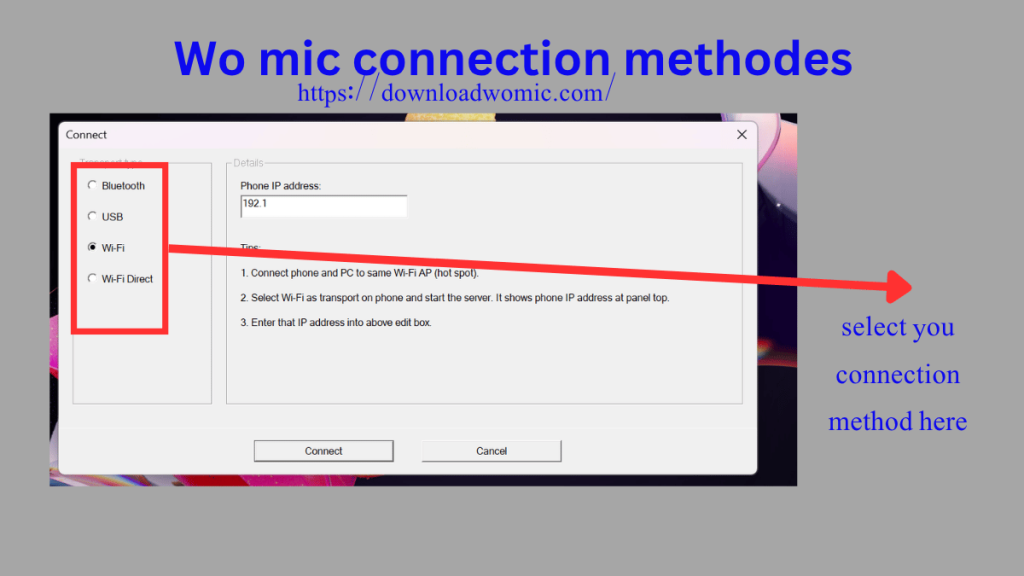
Step 3 – Connect Your iPhone to Your PC
Choose your preferred connection method below.
Wi-Fi
- Connect your iPhone and PC to the same Wi-Fi network.
- Open the WO Mic app on your iPhone.
- Select Wi-Fi as the connection method.
- Open the WO Mic Client on your PC.
- Choose Connection > Connect and select Wi-Fi.
- Enter the required connection information if prompted, then connect.
USB (Supported Configurations Only)
- Connect your iPhone to your PC using a compatible USB cable.
- Trust the computer on your iPhone if prompted.
- Select USB in both the WO Mic app and the Windows Client.
- Start the connection.
Note: USB support on iPhone may be more limited than on Android and can vary depending on your device and software configuration.
Bluetooth Support on iPhone
Bluetooth connections are more limited on iPhone than on Android and may not be available in every configuration. For the most reliable performance and widest compatibility, we recommend using Wi-Fi for most setups or USB, where supported, if you need lower latency.
Step 4 – Start Using Your iPhone as a Microphone
After the connection is established:
- Tap the Play button in the WO Mic app.
- Confirm the connection in the Windows Client.
- Open Windows Sound Settings or your preferred application.
- Select WO Mic Device as the input microphone.
- Speak into your iPhone to verify the microphone is working.

Connection Methods for WO Mic for iPhone
Choose the connection method that best fits your setup.
| Connection Method | Speed | Stability | Recommended For |
|---|---|---|---|
| Wi-Fi | High | Very Good | Most Users |
| USB | Excellent | Best | Lowest Latency |
| Bluetooth | Medium | Fair | Casual Voice Chat |
Which Connection Method Should You Choose?
Recommendation: For everyday use, Wi-Fi offers the easiest setup. If your configuration supports USB, it provides lower latency and a more stable connection.
How to Use WO Mic for iPhone with Popular Apps
Select WO Mic Device as the microphone in your preferred application.
Discord
- Open User Settings > Voice & Video.
- Select WO Mic Device as the Input Device.
- Run Discord’s microphone test.
- Adjust the input sensitivity if necessary.
Zoom
- Open Zoom Settings.
- Navigate to Audio.
- Select WO Mic Device as the microphone.
- Use the built-in audio test before joining a meeting.
Microsoft Teams
- Open Settings > Devices.
- Choose WO Mic Device under Microphone.
- Speak to confirm your microphone is working properly.
OBS Studio
- Open Settings > Audio.
- Set WO Mic Device as your Mic/Auxiliary Audio source.
- Monitor the audio meter to confirm your voice is being captured.
- Adjust input levels for clear, distortion-free sound.
Google Meet
- Start or join a meeting.
- Open Settings > Audio.
- Select WO Mic Device as the microphone.
- Test your voice before enabling your camera and microphone.
Audio Quality Tips
- Stay close to your Wi-Fi router for a stronger signal.
- Use a 5 GHz Wi-Fi network whenever possible.
- Close unnecessary apps running on your iPhone and PC.
- Keep your iPhone charged during long meetings or streams.
- Reduce network congestion by limiting large downloads while using WO Mic.
- Use USB, where supported, for the lowest possible latency.
- Speak into the bottom microphone of your iPhone for the clearest voice capture.
- Test your microphone before joining meetings or live streams to avoid unexpected issues.
Common WO Mic for iPhone Connection Issues
If WO Mic isn’t working properly, try these quick fixes first:
| Issue | Quick Fix |
|---|---|
| Cannot connect | Ensure your iPhone and PC are on the same Wi-Fi network. |
| Microphone not detected | Reinstall the WO Mic Driver and restart your PC. |
| Audio delay | Switch to a 5 GHz Wi-Fi network or use USB if supported. |
| Low volume | Increase the microphone input level in Windows. |
| Frequent disconnects | Disable Low Power Mode and keep the WO Mic app open. |
Still Need Help?
If WO Mic still isn’t working after trying the fixes above, visit our complete WO Mic Troubleshooting Guide. It covers driver installation errors, connection failures, audio problems, latency issues, and other common fixes in detail.
WO Mic iPhone vs Android
Both platforms work well with WO Mic. iPhone offers a simple setup and reliable Wi-Fi performance, while Android provides broader USB and Bluetooth support with slightly lower latency.
| Feature | iPhone | Android |
|---|---|---|
| Easy Setup | ✅ | ✅ |
| USB Support | Limited | Better |
| Wi-Fi Support | ✅ | ✅ |
| Bluetooth Support | Limited | Better |
| Latency | Low | Very Low |
| Compatibility | High | Excellent |
For most users, both platforms deliver reliable audio quality over Wi-Fi. However, Android generally offers more connection flexibility, especially for USB and Bluetooth, while iPhone provides a simple and dependable experience for Windows users who primarily use Wi-Fi.
Conclusion
WO Mic for iPhone lets you use your iPhone as a microphone for a Windows PC without additional hardware. Simply install the required software, connect your devices, and select WO Mic Device as your microphone. For most users, Wi-Fi provides the easiest setup, while USB offers lower latency when supported. If you need additional help, visit our WO Mic tutorial Setup Guide, or Troubleshooting Guide.